Design, Programming, Music and Life

Showing posts with label ios. Show all posts

Friday, July 12, 2013

iOS 7 - Feature: Use camera to redeem

9:08 PM Posted by Unknown , , , , , , , , , , No comments

So I stumbled upon a nice little feature in iOS 7 for my iPad & iPhone, and it is a much needed feature, redeeming a gift card through the camera on the device. I haven't seen much on this feature as of yet, so I figured I would post a few pics of the process.

When you hit the Redeem button in the App Store, you are asked to use the camera or enter a code manually to redeem a gift card. Once you hit the Use Camera button, it ises the front facing camera to identify the code on the back of the card.


Once it finds the code, it will show a box around it for a second, and then blink and show the text (not backwards) and then ask for your account password.


Once the password is confirmed, the box will turn blue and then the camera view will close and go back to the App Store's redeem dialog.


That's about it! Nice feature for iOS 7 I think, and gone are the days of entering a redeem code 2-20 times until it takes :)

Friday, September 28, 2012

How to avoid the iOS 6 update wiping all your contacts

I'm back again with another helpful hint for updating to iOS 6. In some cases, the iOS 6 update is erasing all the contacts off the iCloud account, and that is never a good thing to have happen, so I have a nice and simple solution for this just as a precaution.

The only thing you will need for this solution is a Gmail account. Once you have that set up, we will need to get out your iOS device and go to Settings>Mail, Contacts & Calendars> and Add New. Set it up as an Exchange account, and use m.google.com as the server. Make sure you also use your full gmail address as the login/account too. When it confirms connectivity, just select Contacts, and whatever else you dont have syncing already.

Next we want to give it time to sync all your contacts to Google's servers, after that, you will want to go to Settings>iCloud> and make sure it is turned on, everything is selected, and you have a recent backup. If you dont, do it now, and walk away for an hour.

Once done, you are all safe to Restore and Update your iOS Device. If something goes wrong with the update, and all your iCloud contacts are wiped, you have Google's exchange set up already syncing them anyway. (Personally, I turn off iCloud Contact Sync because it has a tendency to double my contacts randomly) Just make sure once the update is done, you select Restore from iCloud and you will be all set ;)


Friday, September 21, 2012

How to get Google Maps back on iOS 6 (sorta)

9:18 AM Posted by Unknown , , , , , , , No comments
Since iOS 6 has dropped, the main complaint I am seeing so far deals with the lack of Google Maps and the replacement with Apple's own brew of maps. But the accuracy and inclusion of metro areas has been a bit buggy in some areas, so I'm going to show you how to get a form of Google Maps back on the device.

This is a super simple and easy trick to get a shortcut to googles maps services onto your homescreen. Start off by opening Safari, and in the address bar, type "maps.google.com", Googles server will redirect you to their mobile maps, and then from there, all you have to do is tap the share icon, and then tap on "Add to Home Screen", (It might even prompt you if you're lucky). That's it! Now you can navigate all areas that Apple Maps won't let you.

Drop me a commen or share if this helped you out at all ;)

Wednesday, September 19, 2012

A basic iOS 6 heads up

12:04 PM Posted by Unknown , , , , , , , , , No comments

Today is the day, and as most of us Apple users get ready for the release of iOS 6, I thought I'd take the time to cover a few basics. 
  1. It will be available OTA. Over the years, those poor Apple Tech Support people have been sent out to the slaughter on days like today, all because the majority of iOS users all still use their computers to backup and restore, Hardly any of you still have iCloud set up for backing up your device. Please do yourself a favor before updating, Make sure you have iCloud set up and that you have a recent backup in the past couple days, if you don't... DO IT NOW!!!! Then save you and those Apple Technicians some time and headaches by going to Settings > General > Software Update > and check for your update there (WiFi Needed).
  2. If you don't have WiFi, you’ll need iTunes 10.7. Apple released the next version of iTunes a little bit ago, but if your computer is anything like my Families, the software update in iTunes did not work right. What you will likely need to do is go over to the iTunes download page and grab a fresh copy. http://www.apple.com/itunes/download and then install it on your computer. This will make sure your computer can read your iPhone after the update, and if you don't have WiFi, it will allow you to update the old fashion way. 
  3. Backup, Backup, BACKUP!! The worst thing you want to have happen is you go through with all this and you then found out you never backed up your device. I suggest using iCloud for backups, but if that is not an option for you, make sure you do a backup the old fashion way through iTunes. You can force this by right clicking on your devices name in the left hand side, and selecting Backup. 
  4. Delays are the name of the game when millions of people all try something at once. It's best to just be patient, and keep trying if the update fails. Try, try again until it finishes, but don't interrupt the process, this can cause damage to your device. Just ride it out, and if it gives an error, start over.
  5. You are going to want at least half power to start the process. A good rule of thumb is to charge your iOS device to at least 30% before starting an update. I say 50%, because you never know what can go wrong, and its a bad thing to loose power half way through an update. You might have to learn hot to enter DFU mode as a weekend project if that happens. 
  6. Some of your apps might have bugs after the update. Just exercise caution here, not all app developers have gotten their app caught up to iOS 6 compatibility, but they are likely to get there eventually. If you come across any of these apps, just try not to use them until you notice an update from the App Store for them. 
  7. Apple being vague? Never!! They just don't mention the release time. In the past couple years, Apple has released the update at 1:00 EST (10:00 PST) , so it's a good bet that it will happen today around this time. If you haven't received your update by this evening, it likely means you have a firewall issue, or you have a DNS issue. Good luck ;)
That's about it for the iOS 6 heads up, I hope this helps a couple of you out there. 

Monday, August 13, 2012

How to do a few things that Apple won't usually do for you

4:01 PM Posted by Unknown , , , , , , , , , , , , No comments
As an tech geek who owns a few Apple devices, I have come across many things that Apple support will do for you, and apparently, hackers too. But here is a list of things that you can do that Apple will NOT help you with, and instructions for how to do them.

Syncing apps to your iOS device without iTunes.
There are a few reasons that you might want to do this one, the one we are going with is that you purchased an app or album that is no longer available. If you let iTunes sync your apps and restore from iCloud, there is a good potential that after a restore, that app or album will not be there to download again. The solution for this is to A, use iFunBox or another app like it to sync, backup and restore your apps and music library. The app is free and there is no cost to use it, and as an added bonus, it will also sync all your unsupported music to your device too.

Making your iOS device play nice with your Android devices, syncing mail, notes, etc. even text messages potentially.
The key to this one is actually a company that used to play nice with Apple, but now that they are in the process of dropping Googles services, we have to prove their worth once again. Google has many services that can help with your iOS device. The two that we are going to focus on here are Google's Gmail, and Google Voice. With Gmail, iOS only gives the direct option to sync Mail and a couple others. What you need to do instead, is set up your iOS device to use the Gmail Exchange services, this will allow you to sync your contacts, notes, tasks, mail, etc. To do that, just follow the instructions from Google here: http://support.google.com/mobile/bin/answer.py?hl=en&answer=138740 The other half of the equation is all about Google Voice, so if you have a carrier that allows, you can have all your calls and texts routed through your Google Voice account, allowing them to also be sent to other devices as well. The Google Voice app is available for both iOS and Android, and it costs nothing to route your calls through Google Voice, so you can have an account without needing to spend your hard earned cash.

Restoring a jailbroken or bricked iOS device back to stock iOS.
The key to this one is simple, DFU mode. So if you ever have an issue or you brick your iPod Touch while jailbreaking it, plug it into a computer with updated Apple Device drivers hold down both the power and the home buttons for a few seconds until the device turns black, then let go of just the power button, while continuing to hold the home button for three seconds after it goes black. If the device shows an apple, try it again, the home button must be held for three seconds on initial power up, otherwise it won't enter DFU mode correctly. The computer you have it plugged into will do the usual USB notification sound when it works, but the screen on the device will be completely black. Load up iTunes and then click the Update or Restore button. That's it.

How to reset the error log for your iOS device's Home button (sometimes making the Home button more responsive)
This is the mythical "Home Button Recalibration" trick, but all it really does is clear an error log on the device. Open any stock app on your iOS device (iTunes, AppStore, Music, Dialer, etc.) and hold the Home button, and the Power button till you see the slide to unlock page. From here, let go of the buttons, and then hold the Home button until the page closes and you see the home screen (Springboard). This will have cleared the error log for you r home button and possibly made it a bit more responsive in the process. If not, you might want to look into clearing out the  junk on your iOS device, or just restoring it and jailbreaking it again.

How to block certain phone calls and texts from getting through
This one requires a jailbroken device to do it yourself, otherwise, some carriers do offer the service for a fee. If you have a jailbroken device though, you can use the iBlacklist app available through Cydia app store. This will allow you to block calls, texts, and much more from ever bothering you. It has worked well for me.

Monday, July 2, 2012

One down, three to go!

Dadds.com site design and update

The site I have been poring my hard work into lately is finally finished. And by the time this post goes live, the site will be live as well hopefully. The biggest part of this project was taking all the old info and updating it for newer devices and services. I implemented a payment portal, HTML5 slideshow, a kick butt content editor, and a couple easy ways to incorporate videos and slideshows easily. So let's start with a small before and after of the website. 

Home page

Here is the old homepage layout for Dadds.com 

And here is the new layout. We have minimized the focus on the page to the opening article, and replaced all the various banners and text info with a few dynamic modules that will automatically adjust to the article size. 


Limo-bus 25 page

Here is a sample of one of the pages on the old dadds.com. This page is about one of their limo-buses. The actual info did not start until you scrolled down a couple pages worth. 


This was fixed with the new design. All of the slides/pictures are contained in a basic slider that scrolls by its self every few seconds. 


Wedding Services Page

With this page, it was the same as all the others, laid out for one screen size, Gallery and videos took up most of the page, and the content was taking up a small part of it. 


With the slideshow implemented, and the modules around the content, we can see a good portion of the content right off the bat. This is a good thing here. 


Other Examples

Here are a few more examples for how the site looks now with a large resolution screen. This is how it would appear on 60% of the computers viewing it.


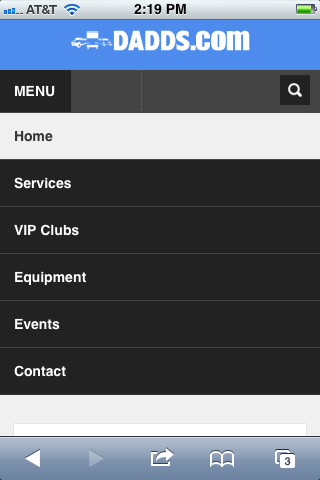
Mobile Phone Layout

Here are a few screens for how the site layout adjusts for mobile devices. These are what the view on a basic iPhone will look like. The only thing I'm not happy with on this view is that the pictures are still using a 650 width. If I use 100%, I get a slideshow the width of one row/module. So it is one or the other here :)


Mobile Tablet Layouts

When you view the site from a tablet, the format also shifts and you get a couple different content sizes depending on if the site is viewed in landscape or portrait mode. 


Friday, April 20, 2012

Google+ widget WIP

12:36 PM Posted by Unknown , , , , , , , , , , No comments

So I have been working a bit more on my Google+ widget for iOS. Right now I am using it inside Dreamboard and it is very usable. Sometimes though, the frame likes to use the screen size instead of the window size, but I will figure it out. I think it is not too shabby for only spending 20 minutes on it a month :) Maybe if I'm lucky, I'll get an offer for something that will help me afford more time on it. (hint,hint) Here are some pics of what I have so far.